It can be opened in different ways, depending on your operating system
Linux: Press Ctrl + Alt + T
sudo apt install texlive-full
Make sure to install the full version with all packages, if you can!
main.tex in TEXstudio. It is located in the root directory of the archive.main.tex by pressing ⏩
Windows users: In order to enable file endings, click the view tab in the file explorer, and select file name extensions. This helps differentiating the different main files.
We have multiple examples of LaTeX source code in the script. As a default setting, we use the package listings for displaying them.
minted for this LaTeX projectpython --version
Python 3.8.5
Pygments and compiler command settingsInstall the Pygments by executing the following command in a command prompt: pip install Pygments
Next to the PdfLaTeX label, add the shell-escape flag to the compiler command:
pdflatex -synctex=1 -interaction=nonstopmode --shell-escape %.tex
Passing the flag --shell-escape to your compiler can be a potential security risk. Only do it for documents you trust!
In order to compile the script using minted, the listings mode has to be changed.
listings-mode.tex
main.tex again by pressing ⏩
listings (top) vs. minted (bottom)
A Fachschaft WIAI workshop. Created by Anika Amma, Evelyn Fradtschuk, Florian Knoch, Christian Kremitzl, Fabian Lamprecht, Bernhard Luedtke, and Anna Sauer.
This paragraph shows the effect of varied line heights in combination with varied line lengths. For this purpose, a little more text is needed to make it look like an actual paragraph. For this purpose, a little more text is needed to make it look like an actual paragraph. For this purpose, a little more text is needed to make it look like an actual paragraph. For this purpose, a little more text is needed to make it look like an actual paragraph. For this purpose, a little more text is needed to make it look like an actual paragraph. For this purpose, a little more text is needed to make it look like an actual paragraph. For this purpose, a little more text is needed to make it look like an actual paragraph. For this purpose, a little more text is needed to make it look like an actual paragraph.
☺ short & tight
This paragraph shows the effect of varied line heights in combination with varied line lengths. For this purpose, a little more text is needed to make it look like an actual paragraph. For this purpose, a little more text is needed to make it look like an actual paragraph. For this purpose, a little more text is needed to make it look like an actual paragraph. For this purpose, a little more text is needed to make it look like an actual paragraph. For this purpose, a little more text is needed to make it look like an actual paragraph. For this purpose, a little more text is needed to make it look like an actual paragraph. For this purpose, a little more text is needed to make it look like an actual paragraph. For this purpose, a little more text is needed to make it look like an actual paragraph.
☹ normal length and tight leading
This paragraph shows the effect of varied line heights in combination with varied line lengths. For this purpose, a little more text is needed to make it look like an actual paragraph. For this purpose, a little more text is needed to make it look like an actual paragraph. For this purpose, a little more text is needed to make it look like an actual paragraph. For this purpose, a little more text is needed to make it look like an actual paragraph. For this purpose, a little more text is needed to make it look like an actual paragraph. For this purpose, a little more text is needed to make it look like an actual paragraph. For this purpose, a little more text is needed to make it look like an actual paragraph. For this purpose, a little more text is needed to make it look like an actual paragraph.
☹ long lines and tight leading
This paragraph shows the effect of varied line heights in combination with varied line lengths. For this purpose, a little more text is needed to make it look like an actual paragraph. For this purpose, a little more text is needed to make it look like an actual paragraph. For this purpose, a little more text is needed to make it look like an actual paragraph. For this purpose, a little more text is needed to make it look like an actual paragraph. For this purpose, a little more text is needed to make it look like an actual paragraph. For this purpose, a little more text is needed to make it look like an actual paragraph. For this purpose, a little more text is needed to make it look like an actual paragraph. For this purpose, a little more text is needed to make it look like an actual paragraph.
☹ short & medium
This paragraph shows the effect of varied line heights in combination with varied line lengths. For this purpose, a little more text is needed to make it look like an actual paragraph. For this purpose, a little more text is needed to make it look like an actual paragraph. For this purpose, a little more text is needed to make it look like an actual paragraph. For this purpose, a little more text is needed to make it look like an actual paragraph. For this purpose, a little more text is needed to make it look like an actual paragraph. For this purpose, a little more text is needed to make it look like an actual paragraph. For this purpose, a little more text is needed to make it look like an actual paragraph. For this purpose, a little more text is needed to make it look like an actual paragraph.
☺ normal length and leading
This paragraph shows the effect of varied line heights in combination with varied line lengths. For this purpose, a little more text is needed to make it look like an actual paragraph. For this purpose, a little more text is needed to make it look like an actual paragraph. For this purpose, a little more text is needed to make it look like an actual paragraph. For this purpose, a little more text is needed to make it look like an actual paragraph. For this purpose, a little more text is needed to make it look like an actual paragraph. For this purpose, a little more text is needed to make it look like an actual paragraph. For this purpose, a little more text is needed to make it look like an actual paragraph. For this purpose, a little more text is needed to make it look like an actual paragraph.
☹ long lines and medium leading
This paragraph shows the effect of varied line heights in combination with varied line lengths. For this purpose, a little more text is needed to make it look like an actual paragraph. For this purpose, a little more text is needed to make it look like an actual paragraph. For this purpose, a little more text is needed to make it look like an actual paragraph. For this purpose, a little more text is needed to make it look like an actual paragraph. For this purpose, a little more text is needed to make it look like an actual paragraph. For this purpose, a little more text is needed to make it look like an actual paragraph. For this purpose, a little more text is needed to make it look like an actual paragraph. For this purpose, a little more text is needed to make it look like an actual paragraph.
☹ short & loose
This paragraph shows the effect of varied line heights in combination with varied line lengths. For this purpose, a little more text is needed to make it look like an actual paragraph. For this purpose, a little more text is needed to make it look like an actual paragraph. For this purpose, a little more text is needed to make it look like an actual paragraph. For this purpose, a little more text is needed to make it look like an actual paragraph. For this purpose, a little more text is needed to make it look like an actual paragraph. For this purpose, a little more text is needed to make it look like an actual paragraph. For this purpose, a little more text is needed to make it look like an actual paragraph. For this purpose, a little more text is needed to make it look like an actual paragraph.
☹ normal length and loose leading
This paragraph shows the effect of varied line heights in combination with varied line lengths. For this purpose, a little more text is needed to make it look like an actual paragraph. For this purpose, a little more text is needed to make it look like an actual paragraph. For this purpose, a little more text is needed to make it look like an actual paragraph. For this purpose, a little more text is needed to make it look like an actual paragraph. For this purpose, a little more text is needed to make it look like an actual paragraph. For this purpose, a little more text is needed to make it look like an actual paragraph. For this purpose, a little more text is needed to make it look like an actual paragraph. For this purpose, a little more text is needed to make it look like an actual paragraph.
☺ long lines and loose leading
☹ slanted (distorted)
☺ straight
☺ italic (separate font)
☹ small font scaled up
☺ separate appropriate fonts
☹ big font scaled down
Goal: you are going to build your own little
LaTeX manual based on our LaTeX script.
Outline:
Image source: xkcd
General structure of a command:
A few examples:
You get the backslash by pressing
AltGr + ß (Windows/Linux)
Alt + Shift + 7 (MacOS)
Square brackets may contain different numbers of optional parameters:
\usepackage[utf8]{inputenc}
% configures the text encoding
\documentclass[a4paper,12pt]{article}
% configures the document class
\includegraphics[width=12cm,height=4cm]{image.png}
% embeds the image file "image.png"
After a percent sign, the rest of the line is ignored by the compiler. It is called a comment and does not appear in the resulting document.
% profile start
Name: Donald Knuth \\
Geburtsdatum: \\ % TODO: insert
Geburtsort: Milwaukee, Wisconsin
% profile end
Shortcuts: Ctrl + T and Ctrl + U
Please install the compiler first (MikTeX on Windows, MacTeX on MacOS, TeX Live on Linux), followed by the editor. In this workshop, we use TeXstudio.
main.tex in TeXstudio. It is located in the root directory of the archive.main.tex by pressing ⏩.👁 Every LaTeX document is composed of
\documentclass{article}
\usepackage[utf8]{inputenc}
\usepackage[T1]{fontenc}
\usepackage{babel}
\begin{document}
Hello world!
\end{document}
\documentclass[<parameter>]{<document_class>}
For example:
\documentclass[10pt,a5paper,landscape]{scrartcl}
scrartcl, article for short documents
scrreprt, report for longer documents
scrbook, book for books
beamer for presentations
\usepackage[<options>]{<package_name>}
\usepackage[utf8]{inputenc}
\usepackage[t1]{fontenc}
\usepackage[ngerman]{babel}
babel provides language-specific information (e. g., hyphenation, special characters, font changes, translated labels like ‘chapter,’ ‘table of contents’ or ‘figure’).ngerman is the German new spelling.A document can use multiple languages at once:
\usepackage[ngerman, swedish, russian, greek, english]{babel}
To switch languages:
\selectlanguage{<language a>}
\selectlanguage{<language b>}
Embedded Text in another language:
\selectlanguage{<language a>}
\foreignlanguage{<language b>}{Text of language B in a Text of language A}
\today
\selectlanguage{ngerman}
\today
\selectlanguage{swedish}
\today
\selectlanguage{russian}
\today
\selectlanguage{greek}
\today
\selectlanguage{english}
\today
Continous text can be written directly ↲
in the source code. ↲
Simple line breaks ↲
are ignored, ↲
just as multiple space characters. ↲
↲
An empty line creates a new paragraph ↲
which has an indentation by default. ↲
Manual line breaks can be forced ↲
using two backslashes, but this use ↲
is strongly discouraged \\ ↲
within continuous text.
Some characters do things in LaTeX:
# $ % ^ & _ { } ~ \
50% is one half.
Solution: prefix with ‘\’:
50\% is one half.
Does not work for ‘\\’, we will see a solution for this later.
Texts are structured by beeing subdivided in sections and chapters. Always available:
\section{Level 1}
\subsection{Level 2}
\subsubsection{Level 3}
\paragraph{Level 4}
\subparagraph{Level 5}
Additionally, for some document classes:
\chapter{Chapter}
\part{Part}
With an asterisk, there is no numbering and no entry in the table of contents:
\section*{No entry in table of contents}
You can also provide an alternative title for the table of contents:
\section[Entry in table of contents]
{Actual chapter heading}
\title{The World of Truffles}
\author{Fooboar Rüssel \\ Fachschaft WIAI\thanks{WIe AIn Profi},
Otto-Friedrich-Universität Bamberg}
\date{\today}
\begin{document}
\maketitle
\end{document}
\maketitle typesets the front matter within the document environment.\and.\date{}.\documentclass{article}
\usepackage{babel}
\title{The World of Truffles}
\author{Fooboar Rüssel \\ Fachschaft
WIAI\thanks{WIe AIn Profi},
Otto-Friedrich-Universität Bamberg}
\date{\today}
\begin{document}
\maketitle
\section{Truffle hunt}
\subsection{Hunt with a pig}
\subsection{Hunt without a pig}
Why would you do that?
\section{Truffle recipes}
My favorite recipe
\end{document}
\tableofcontents
*) are hidden from the table of contents: e. g. \section*{}.\documentclass{article}
\usepackage{babel}
\begin{document}
\tableofcontents
\section{Truffle hunt}
The first section.
\subsection{Hunt with a pig}
A subsection.
\subsection{Hunt without a pig}
Another subsection.
\subsubsection[But why?]
{Why would you do that?}
Sub-subsection.
\section{Truffle recipes}
My favorite recipe
\end{document}
List of figures and list of tables
\listoffigures
\listoftables
document-structure.tex. It is located in the directory exercises/basic-document-structure.\documentclass{scrartcl}
\usepackage[utf8]{inputenc}
\usepackage[T1]{fontenc}
\usepackage[english]{babel}
\\’. Use real paragraphs instead.\section, \subsubsection, etc.).Create a bigger LaTeX project and …
\input{path/to/file}
\documentclass{article}
\usepackage{babel}
\usepackage[utf8]{inputenc}
\usepackage[T1]{fontenc}
\title{A Title}
\begin{document}
\maketitle
\tableofcontents
\input{section1.tex}
\input{section2.tex}
\end{document}
\begin{document} or \end{document}
\section{This is section 1}
A paragraph about the content
of section 1.
% …
\section{This is section 2}
A paragraph about the content
of section 2.
% …
\input{}, but later also for other media types/
\
absolute path for main.tex
/home/knut/docs/latex/main.tex
C:\knut\docs\latex\main.tex
In LaTeX, you have to use UNIX-style paths. Therefore, we will use those from here on.
\input{}, you can specify the path relative to the main file
Relative path
from main.tex to part1.tex
./part1.tex
A single dot ‘.’ in a relative path represents the current folder (in this case: latex). It is optional, you could also write part1.tex here.
Relative path from main.tex to part1.tex in subfolder
./sections/part1.tex
Relative path from main.tex in its own subfolder to part1.tex in another subfolder
../sections/part1.tex
Two dots ‘..’ represent the parent folder of the current folder (in this case: latex, parent of main).
What do you think happens when we outsource the preamble into its own subfile?
Will the document compile?
Yes, it will!
A simple way of keeping the main file even more organised.
You will find a file named main.tex in the folder exercises/project-structure.
section1.tex, section2.tex, and section3.tex) and insert them using the \input command.main.tex.main.tex in the project root.~
\,
Thin spaces are used in abbreviations
and before units, e.\,g., 10\,s.
Normal-width non-breaking spaces can help
keep honorary titles and names on one
line: Dr.~Fooboar.
In English, LaTeX uses the old-fashioned English spacing, i. e., double sentence spacing.
If you want to be more modern, you can use \frenchspacing above your first paragraph. \nonfrenchspacing goes back to default.
If you actually use English spacing, LaTeX will still try and put normal word spacing after abbreviations. However, you should check the results and intervene where needed by
.\␣
\@.␣
| Name | Use | Code | |
|---|---|---|---|
| - | Hyphen | compound-forming hyphen |
-
|
| – | En dash (Halbgeviertstrich) | a dash – or a range: 12 – 2 p.m. |
--
|
| — | Em dash (Geviertstrich) | a dash — mostly in American English |
---
|
Most of the time, LaTeX hyphenates words correctly, if the correct language is configured. Sometimes, however, manual intervention is necessary. The different kinds of hyphens that LaTeX offers are described in our script.
| Language | Command | Result |
|---|---|---|
| English (B. E.) |
`…'
|
‘ … ’ |
| 2nd Level |
``…''
|
“ … ” |
| English (A. E.) |
``…''
|
“ … ” |
| 2nd Level |
`…'
|
‘ … ’ |
| German |
\glqq … \grqq
|
„ … “ |
| 2nd Level |
\glq … \grq
|
‚ … ‘ |
| German altern. |
\frqq … \flqq
|
» … « |
| 2nd Level |
\frq … \flq
|
› … ‹ |
Other rules my apply for other languages, but most of the time it’s the same characters, only combined differently.
The csquotes package provides, amongst others, the command \enquote.
\enquote{A \enquote{nested}
quote.}
When included with autostyle=true, foreign-language quotes use the according quotation marks:
\foreignquote{ngerman}{Ein deutsches
Zitat.}
Letters with diacritics can either by typed directly on the keyboard or via escape codes:
\`{o}
|
ò |
\c{c}
|
ç |
\d{u}
|
ụ |
\'{o}
|
ó |
\k{a}
|
ą |
\r{a}
|
å |
\^{o}
|
ô |
\l{}
|
ł |
\u{o}
|
ŏ |
\"{o}
|
ö |
\={o}
|
ō |
\v{s}
|
š |
\H{o}
|
ő |
\b{o}
|
o |
\t{oo}
|
o͡o |
\~{o}
|
õ |
\.{o}
|
ȯ |
\o
|
ø |
The same is true for special characters: They can either be typed directly or created via escape codes and commands:
| ¿ |
?`
|
¡ |
!`
|
| ^ |
\textasciicircum
|
~ |
\textasciitilde
|
| * |
\textasteriskcentered
|
\ |
\textbackslash
|
| | |
\textbar
|
∙ |
\textbullet
|
| ⓒ |
\textcopyright
|
† |
\textdagger
|
| ‡ |
\textdaggerdbl
|
… |
\textellipsis
|
| < |
\textless
|
> |
\textgreater
|
| ‰ |
\textperthousand
|
§ |
\textsection
|
… and pretty much anything else.
Some special characters and symbols require a math environment:
% greek letters (π Σ δ)
$\pi \Sigma \delta$
% dagger/obelisk/obelus (†)
$\dagger$
From now on, compile the file main.tex to see your changes appear in the script itself (in this task, see section “Übung 5”).
exercises/special-characters.tex within the abbreviations (“e. g.”, “i. a.”) by thin spaces.--), optionally surrounded by thin spaces.The easiest way of emphasising in continuous text is the semantic command \emph{} that can also be nested:
\emph{If you have a whole bunch of
important text with some \emph{even more
important Text} hidden inside it,
you can use nested emphases.}
specifies exactly how to format the text:
| Name | Befehl |
|---|---|
| Bold (bold face) |
\textbf{important}
|
| Italics (italics) |
\textit{important}
|
| Small caps |
\textsc{important}
|
| non-proportional (teletype) |
\texttt{important}
|
| slanted |
\textsl{important}
|
| underlined |
\underline{important}
|
| subscript |
\textsubscript{…}
|
| superscript |
\textsuperscript{…}
|
Possible if the font contains the exact font style:
\textbf{Very
\textit{Important
\textsc{Stuff}
}
}
Some well-meaning advice: Better Call Saul LaTeX!
You want the entire document to look consistent?
Trust LaTeX’s defaults (font sizes of title, paragraphs, footnotes, etc.)!
This conversely means: Avoid fiddling around with font sizes manually.
normalsize\documentclass[12pt]{article}
{\<fontsize> some text}
Font sizes relative to normalsize:
{\tiny If}
{\footnotesize you}
{\small can}
{\normalsize read}
{\large this,}
{\Large you}
{\LARGE don’t}
{\huge need}
{\Huge glasses.}
\fontsize{<fontsize>}{<lineheight>}
\selectfont
This is text in normal font size.
\fontsize{1cm}{0.9cm}\selectfont
This is a ginormous passage.
\normalsize
Back to normal.
The hyperref package provides an \url{} command that reproduces URLs
\url{https://www.latex-project.org/}
exercises/text-markup/markup.tex using \emph{…}.By default, LaTeX sets text in full justification, but it is possible to activate ragged alignment.
\raggedright … \raggedleft …
\centering …
Alternatively, we can use dedicated environments:
\begin{flushleft} Text \end{flushleft}
\begin{flushright} Text \end{flushright}
\begin{center} Text \end{center}
Proper ragged alignment is even more difficult than good justification, so better avoid it.
\parindent)\parskip) instead (!)\setlength{\parindent}{0pt}
\setlength{\parskip}{1em
plus .5em % permitted stretch
minus .5em % permitted compression
}
\noindent allows us to disable first-line indentation for a given paragraph\begin{itemize}
\item lasagna noodles
\item crushed tomatoes, % …
\item oregano, basil, % …
\item mozzarella cheese
\item flour
\item milk
\end{itemize}
We mark each bullet point with \item. This pattern is the same for all kinds of enumerations.
\begin{enumerate}
\item cook onions over medium % …
\item add crushed tomatoes, carrots % …
\item add herbs and spices % …
% \item …
\end{enumerate}
\begin{description}
\item [Béchamel sauce] Béchamel % …
\item [Lasagne] Lasagne (singular % …
\end{description}
The package paralist offers enumerations with less line spacing.
\section{Ingredients}
\begin{compactitem}
% \item …
\end{compactitem}
\section{Preparation}
\begin{compactenum}
% \item …
\end{compactenum}
\section{Glossary}
\begin{compactdesc}
% \item …
\end{compactdesc}
Another feature provided by paralist enables us to integrate enumerations into paragraphs.
The following herbs are % …
\begin{inparaitem}
\item lovage
\item parsley
\item chives
\end{inparaitem}
Of course, there is an accompanying list type called inparaenum for ordered lists.
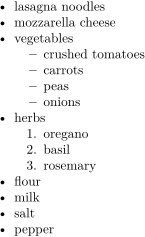
\begin{compactitem}
% …
\item vegetables \begin{compactitem}
\item crushed tomatoes
\item carrots
\item peas
\item onions
\end{compactitem}
\item herbs \begin{compactenum}
\item oregano
\item basil
\item rosemary
\end{compactenum}
% …
\end{compactitem}
The list style type can be set using the optional parameter label. To accomplish this, we need to include the package enumitem first.
% Roman numerals
\begin{enumerate}[label=\roman*]
% …
% Arabic numerals
\begin{enumerate}[label=\arabic*]
% …
% Alphabetical
\begin{enumerate}[label=\alph*]
% …
lists.tex into an unordered list consisting of the elements Ingredients and Instructions. You can find the file in the directory exercises/lists. Use the itemize command.$2 \sqrt{\frac{\pi^2}{3} \cdot c_2}$
Mathematical formulas are only accepted in the so-called math mode. In-line formulas must therefor be guarded by two dollar signs. We can also use the equation block environment:
\begin{equation}
2 \sqrt{\frac{\pi^2}{3} \cdot c_2}
\end{equation}
Packages: amsmath, amsthm, amssymb, mathtools
| source code | result |
|---|---|
\sqrt{16}
|
\(\sqrt{16}\) |
\frac{3}{4}
|
\(\frac{3}{4}\) |
e^{\pi}
|
\(e^{\pi}\) |
\sum_{i=1}^{n}x^2
|
\(\sum_{i=1}^{n} x^2\) |
12 \leq 4 x^2 + 13
|
\(12 \leq 4 x^2 + 13\) |
{n \choose k}
|
\({n \choose k}\) |
^{…} and _{…} make the content between the braces appear as sub- or superscripted.
| source code | result |
|---|---|
(x), [x], \lbrace x \rbrace, \lvert x \rvert
|
\((x), [x], \lbrace x\rbrace, \lvert x\rvert\) |
\exists, \forall, \in, \notin, \infty
|
\(\exists,\forall,\in,\notin,\infty\) |
\alpha, \beta, \Gamma, \Delta, \varepsilon, \pi
|
\(\alpha, \beta, \Gamma, \Delta, \varepsilon, \pi\) |
\rightarrow, \leftarrow, \Rightarrow, \Leftarrow, \Leftrightarrow
|
\(\rightarrow, \leftarrow, \Rightarrow, \Leftarrow, \Leftrightarrow\) |
(A \cup B) \cap C
|
\((A \cup B) \cap C\) |
(A \lor B) \land C
|
\((A \lor B) \land C\) |
(A \cdot B) \times C
|
\((A \cdot B) \times C\) |
| source code | result |
|---|---|
\left( \frac{1}{2} \right)
|
\(\left( \frac{1}{2} \right)\) |
\left[ \frac{1}{2} \right]
|
\(\left[ \frac{1}{2} \right]\) |
\left\lbrace \frac{1}{2} \right\rbrace
|
\(\left\lbrace \frac{1}{2} \right\rbrace\) |
$4 \cdot \left( \frac{1}{2} % …
\(4 \cdot \left(\frac{1}{2} +\frac{3}{ 12 \cdot \left( 2 + \frac{1}{86 \cdot \left(\frac{1}{2} + 24 \right)} \right)} \right)\)
The bounds of an integral can be enforced to appear above and below the integral symbol using the \limits command. This is the standard behaviour for sums, products and limits.
\sum_{i=1}^{n^2}(x+2)
\prod_{j=1}^{100}(3 \cdot x)
\lim_{x \rightarrow \infty}(14x^3 - 12)
\int\limits_{-12}^{4}(14x^3 - 12)
Don’t use \limits inline.
The align environment permits us to align equations at certain positions like the ‘ = ’ character.
\begin{align}
13 \cdot (4a - 3)^2 &= 13 … \\
&= 208a^2 - 312a + 117
\end{align}
&’).\\’.align and equation will not be numbered if we add an asterisk after their names (e. g. \begin{align*} and \end{align*}).In certain situations, it is more adequate to use textual predicates or long function names within the set builder notation.
This is where \mathrm{} comes into play.
\(\left\lbrace x \mid frequency(x) \geq 20\right\rbrace\)
\(\left\lbrace x \mid \mathrm{frequency}(x) \geq 20\right\rbrace\)
$\left\lbrace x \mid \mathrm{frequency} …
Code up the following formulas in the file exercises/maths/math-formulas.tex.
| Meaning | Result |
|---|---|
| Gravitational acceleration | \(9,81\,\frac{m}{s^2}\) |
| Formula to solve quadratic equations | \(x_{1,2} = - \frac{p}{2} \pm \sqrt{\left(\frac{p}{2}\right)^2 - q}\) |
| Another formula to solve quadratic equations | \(x_{1,2} = \frac{-b \pm \sqrt{b^2 - 4ac}}{2a}\) |
| Catalan numbers | \(C_n = \frac{1}{n+1} {2n \choose n} = \frac{(2n)!}{(n+1)!n!}\) |
Code up the following formulas in the file exercises/maths/math-formulas.tex.
| Meaning | Result |
|---|---|
| Definition of factorial | \(n! = \prod_{i=1}^{n} i\) |
| Set of all odd natural numbers | \(\{ x \mid x \in \mathbb{N}, \mathrm{odd}(x) \}\) |
| Elimination \(\neg\exists x\) | \(\neg\exists x . p(x) \Leftrightarrow \forall x . \neg p(x)\) |
To display graphics, we need the graphicx package.
\begin{figure}
\includegraphics{<file path>}
\caption[<short caption (table of
figures)>]{<full caption>}
\end{figure}
Specifying the size:
\includegraphics[width=0.5\textwidth,
height=5cm]{<file path>}
\begin{figure}[<position code>]
LaTeX places graphics automatically. With position codes, we can express our preferences (they can be combined as well).
| code | position |
|---|---|
| h | here, if you don’t mind |
| t | top of the page |
| b | bottom of the page |
| p | on its own page |
| H |
Here, for God’s sake! ( float package required)
|
\begin{figure}[<position>]
\begin{center}
\includegraphics{<path-to-file>}
\end{center}
\end{figure}
Alternatively:
\begin{figure}[<position>]
\centering
\includegraphics{<path-to-file>}
\end{figure}
exercises/graphics you can find an image file named latex-logo.png.exercises/graphics/graphics.tex and place it exactly where you include it.\textwidth).For typographically pleasing tables, we use the booktabs package.
\usepackage{booktabs}
\begin{table}[<position>]
\begin{tabular}{<column definition>}
% table content
\end{tabular}
\caption{<caption>}
\end{table}
Positioning works just like with graphics.
\begin{tabular}{lrcl}
% table content
\end{tabular}
| letter | meaning |
|---|---|
| l | left-justified column |
| c | centred column |
| r | right-justified column |
Vertical separator lines and double horizontal lines are frowned upon by typographers and should be avoided.
\begin{tabular}{lll}
\toprule
Column 1 & Column 2 & Column 3 \\
\midrule
Content a & Content b & Content c \\
Content e & Content f & Content g \\
Content i & Content j & Content k \\
\bottomrule
\end{tabular}
&’.\\’.\toprule, \midrule and \bottomrule structure the table.\begin{table}[h]
\begin{tabular}{lrcl}
\toprule
Language & Author & Year & Version \\
\midrule
C++ & Bjarne Stroustrup & 1985 & C++ 17 \\
Java & James Gosling & 1998 & 13 \\
Python & Guido van Rossum & 1991 & 3.8.0 \\
\bottomrule
\end{tabular}
\caption{Well-known programming languages}
\end{table}
@{} to the left and right of a column definition removes the padding of the corresponding column.
\begin{tabular}{@{}lrcl@{}} limits the row separators to the width of the table content
Tables that exceed one page are simply cut off by tabular. A solution is offered by the longtable package:
\usepackage{longtable}
\begin{longtable}{<column definition>}
% table content
\caption{<caption>}
\label{<label>}
\end{longtable}
longtable
\begin{longtable}{<column definition>}
% table content
\caption{<caption>}
\label{<label>}
\end{longtable}
longtable environment merges the tabular and table environments.booktabs package is used, its features are also provided in longtable.If you need a table to be wider than a page, you can display it in landscape orientation:
\usepackage{rotating}
\begin{sidewaystable}[<position>]
\begin{tabular}{<column def.>}
% table content
\end{tabular}
\end{sidewaystable}
\begin{table}[h]
\begin{tabular}{llr}
\toprule
Structure & \multicolumn{2}{l}{Access time complexity} \\ \cmidrule(r){2-3}
& Average & Worst \\
\midrule
Stack & $\mathcal{O}(n)$ & $\mathcal{O}(n)$ \\
Binary tree & $\mathcal{O}(log(n))$ & $\mathcal{O}(n)$ \\
AVL tree & $\mathcal{O}(log(n))$ & $\mathcal{O}(log(n))$ \\
\bottomrule
\end{tabular}
\end{table}
The Tables Generator is a wonderful tool to quickly create tables of different formats.
exercises/tables/tables.tex stores information on a few modules of the WIAI faculty.There are two popular ways to display source code in a LaTeX document.
minted renders very pretty source code listings, but it requires some extra configuration and might not work on every operating system.listings is an easy-to-use (but not as pretty) option for those having troubles with minted.Their commands are very similar.
minted requires the Python programming language. As soon as Python is installed, we can download the corresponding Python package Pygments using a command prompt:
pip install Pygments
Add the LaTeX packages for minted or listings and we are good to go:
\usepackage{minted}
\usepackage{listings}
We need to pass the additional flag --shell-escape to our compiler in order to use minted.
Do this only for documents you trust!
In TeXstudio, go to Options → Configure TeXstudio → Commands (TeXstudio → Settings on macOS) and add the flag in the PdfLaTeX row before %.tex:
pdflatex -synctex=1 -interaction=nonstopmode --shell-escape %.tex
Our exercise material allows you to choose between minted and listings. By default, we use listings. To activate minted, create a file called listings-mode.tex in the project’s root directory and add the following line:
\newcommand\listingsmode{minted}
After compiling again, your listings should be rendered by minted.
Within a dedicated environment:
\section*{Haskell Magic}
Squares of all even % …
\begin{minted}{haskell}
[x^2 | x <- [1..200], even x]
\end{minted}
Directly inline:
\section*{An HTML Example}
A headline is denoted the following way:
\mint{html}|<h2>LaTeX at University</h2>|
We can avoid redundancy by including source code directly from its source file.
\section*{Simple Java Application}
\inputminted{java}{Test.java}
public class Test {
public static void main(/*…*/) {
System.out.println(/*…*/);
}
}
Optional parameters allow us to activate line numbers, automated line breaks, and syntax highlighting based on numerous color schemes.
\usemintedstyle{monokai}
\begin{minted}[
linenos=true,
breaklines=true,
]{javascript}
% ...
\end{minted}
Within a dedicated environment:
\section*{Haskell Magic}
Squares of all even % …
\begin{lstlisting}[language=Haskell]
[x^2 | x <- [1..200], even x]
\end{lstlisting}
The listings package does not provide an inline command.
Conveniently, also listings offers an import command:
\section*{Simple Java Application}
\lstinputlisting[language=Java]{Test.java}
public class Test {
public static void main(/*…*/) {
System.out.println(/*…*/);
}
}
listings does not provide any themes by default, but can be configured extensively.
\begin{lstlisting}[
language=Java,
basicstyle=\footnotesize\ttfamily,
breaklines=true,
keywordstyle=\color{ForestGreen},
commentstyle=\color{DarkGray},
literate={ö}{{\"o}}1
]
% …
\end{lstlisting}
Have a look at the \lstset command for creating your own themes.
xcolor package for colorslistings
minted
exercises/source-code-listings you can find a file named Source.java.source-code-listings.tex. (Keep in mind that the file path is relative to the main LaTeX document, i. e., to main.tex.)native.autogobble).If you have questions, try to consult the documentation of the minted package.
listings
exercises/source-code-listings you can find a file named Source.java.source-code-listings.tex. (Keep in mind that the file path is relative to the main LaTeX document, i. e., to main.tex.)basicstyle to a proper mono-spaced font (\ttfamily \small)If you have questions, try to consult the documentation of the listings package.
\usepackage{hyperref}
Footnotes are automatically numbered consecutively, independent of sections.
(Here, hyperref is used for the \url command, it is not necessary for footnotes per se.)
The wild boar (\textit{Sus scrofa}), also
known as the wild swine, common wild pig,
or simply wild pig, is a suid native to
much of Eurasia and North Africa, and has
been introduced to the Americas and Oceania.
\footnote{\url{https://en.wikipedia.org/
wiki/Wild_boar}}
The footmisc package provides additional options for the presentation of footnotes that can be activated by adding parameters to the \usepackage command.
% Reset the counter on each page:
\usepackage[perpage]{footmisc}
% Display footnotes in-line:
\usepackage[para]{footmisc}
% Use symbols instead of numbers:
\usepackage[symbol]{footmisc}
Manually (just don’t!)
As you can see in figure 23, …
Using the \ref command:
\begin{figure}[H]
\includegraphics % …
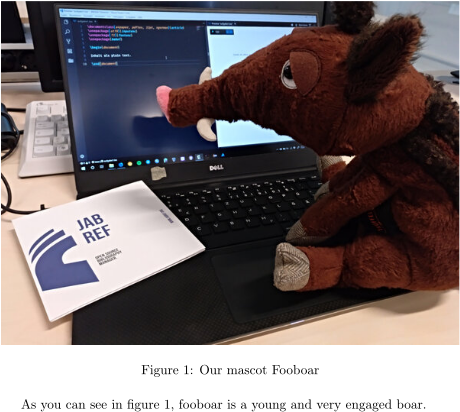
\caption{Our mascot Fooboar}
\label{img:fooboar}
\end{figure}
As you can see in figure
\ref{img:fooboar}, …
Both cross-reference commands work with sections, figures, tables, listings, and equations, as long as you use correct labels.
Labels have to be unambiguous. For clarity, certain prefixes are common, and some packages use them to derive information.
fig: Figures
|
tbl: Tables
|
sec: Sections
|
subsec: Subsections
|
ch: Chapters
|
itm: Enumeration items
|
eq: Equations
|
lst: Source code listings
|
Using the cleveref package (with one ‘r’!):
\begin{figure}[H]
\includegraphics % …
\caption{Our mascot Fooboar}
\label{img:fooboar}
\end{figure}
Fooboar is a young and highly engaged
boar (see \cref{img:fooboar}).
The \cref command automatically inserts suitable prefixes.
Terms inserted by \cref use the language specified with the document class (or babel):
\documentclass[english]{article}
Apart from sections, referenced elements need captions (\caption{…}), and the captions have to be placed before the label.
For sectioning commands, the label is inserted directly after the section command.
\section{Notes}\label{sec:notes}
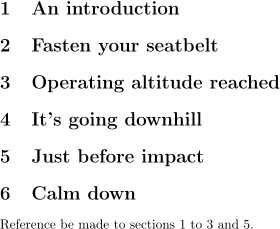
hyperref before cleveref.\cref can take multiple references at once, separated by commas.\section{An introduction}
\label{sec:section1}
% …
Reference be made to
\cref{sec:section1,sec:section2,
sec:section3,sec:section5}.
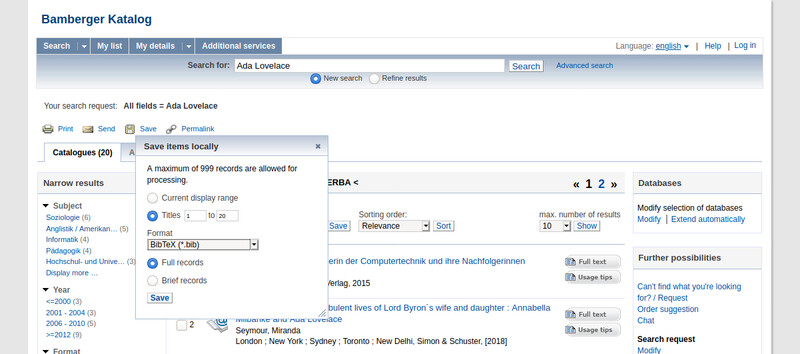
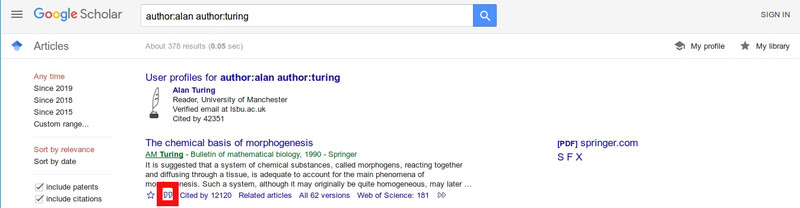
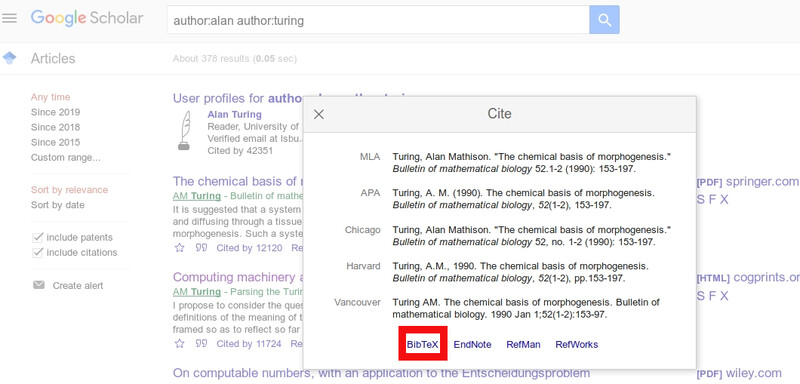
exercises/footnotes/footnotes.tex appear as a footnote.https://www.oracle.com/java/technologies/javase-downloads.html).exercises/references/references.tex, replace In the figure and The following source code listing by references to the figure and to the source code listing.\cref for the references.listing environment..bib file) for storing references.bib file?@article{turing1990, % the type of the document and an identifier for the \cite command
title={The chemical basis of morphogenesis}, % information
author={Turing, Alan Mathison}, % about
journal={Bulletin of mathematical biology}, % the
volume={52}, % literature
pages={153--197}, % work
year={1990}, % follows
publisher={Springer} % …
}
BibTeX adds some citation commands to LaTeX. In addition, we need the natbib package.
\cite{<source>}
\cite[p. 15]{<source>}
\cite[<prefix>][<suffix>]{<source>}
.bib file: \bibliography{<.bib file>}
\bibliographystyle{<citation style>}
Two things are infinite: the universe and the assortment of citation styles.Unknown
literature.bib in the exercises/literature folder.exercises/literature/literature.tex.plain bibliography style.\usepackage{makeidx}
\makeindex
\begin{document}
\maketitle
\section{What is LaTeX\index{LaTeX}?}
LaTeX\index{LaTeX} is a typesetting
system\index{Typesetting system}.
\newpage \section{TeX\index{TeX} vs.
LaTeX\index{LaTeX}} It is based on
TeX\index{TeX}, an invention by
Donald Knuth\index{Knuth, Donald}.
As TeX\index{TeX} is way more complex
syntactically than LaTeX\index{LaTeX},
LaTeX\index{LaTeX} is much more
popular.
\printindex
For slides, there is the beamer document class, as well as numerous templates and themes.
\documentclass{beamer}
\usetheme{Frankfurt}
\usecolortheme{seahorse}
\usepackage[utf8]{inputenc}
\begin{document}
\begin{frame}
\frametitle{Lemon sorbet}
\framesubtitle{Incarnation of good?}
\begin{definition}
A lemon sorbet is a
semi-frozen \textbf{dessert}
on \textit{lemon} base.
\end{definition}
\end{frame}
\end{document}
TikZ (“TikZ ist kein Zeichenprogramm” — “TikZ is no drawing software”) is a powerful package for drawing vector graphics.
% …
\tikzstyle{every node}=[draw=black,thick,anchor=west]
\tikzstyle{selected}=[draw=red,fill=red!30]
\tikzstyle{dir}=[fill=gray!50]
\tikzstyle{relativeTo}=[fill=blue!70]
\begin{tikzpicture}[%
grow via
three points={one child at (0.5,-0.7) and
two children at
(0.5,-0.7) and (0.5,-1.4)},
edge from
parent path={(\tikzparentnode.south)
|- (\tikzchildnode.west)}]
\node {/ or C:}
child { node {home}
child { node {knut}
child { node {pictures}}
child { node {docs}
child { node [dir] {latex}
child { node [relativeTo] {main.tex}
child { node [selected] {part1.tex}
}
}
}
};
\end{tikzpicture}
The qtree package can render constituent-based parse trees:
\Tree [.S [.NP LaTeX ]
[.VP [.V is ] [.NP fun ] ] ]
Logical tableaux can be renderd using the prftree package.
\begin{displaymath}
\prftree[l,r]{}{[comp$\_{ns}$]}
{
\prftree[l,r]{}{[comp$\_{ns}$]}
{
\prftree[l,r]{}{[ass$\_{ns}$]}
{
-
}
{
(\texttt{m:=a}, \sigma\_{\bot,\bot})
\rightarrow \sigma\_{48,\bot}
}
}
{
\prftree[l,r]{}{[ass$\_{ns}$]}
{
-
}
{
(\texttt{n:=b}, \sigma\_{48,\bot})
\rightarrow \sigma\_{48,18}
}
}
{
(\texttt{m:=a; n:=b}, \sigma\_{\bot,\bot})
\rightarrow \sigma\_{48,18}
}
}
{
\prftree[l,r]{}{}
{
\dots
}
{
\textbf{[1]}\ (\texttt{LOOP}, \sigma\_{48,18})
\rightarrow \sigma\_{6,6}
}
}
{
(\texttt{m:=a; n:=b; LOOP}, \sigma\_{\bot,\bot})
\rightarrow \sigma\_{6,6}
}
\end{displaymath}
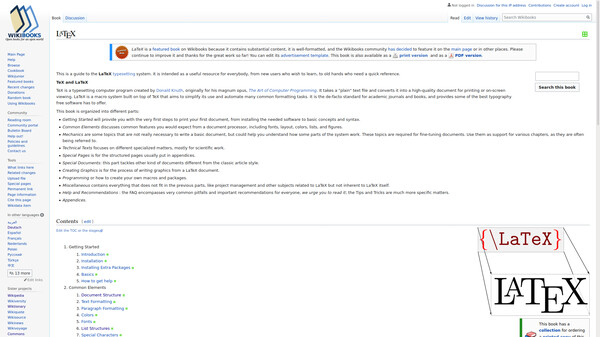
The LaTeX Wikibook offers numerous interesting articles and is available in English and German (among others).

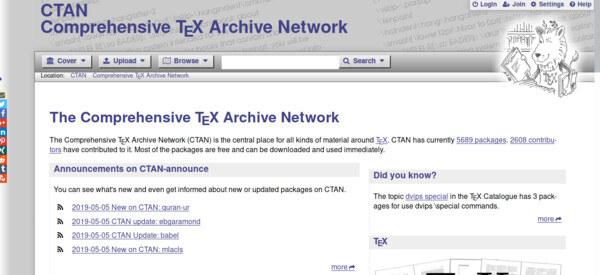
The “Comprehensive TeX Archive Network” is the central source for LaTeX packages and their documentation.

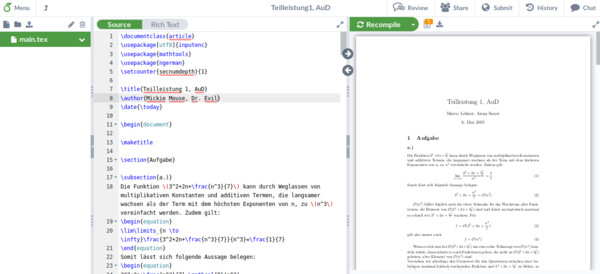
Overleaf is a collaborative online LaTeX editor.
It also offers a multiple tutorials and templates for different occasions (CV, theses, …): »Templates«.

📍WE5/02.104
☎️0951 863 1219
📧fachschaft-wiai.stuve@uni-bamberg.de